Getting Started with Arvad
Learn how to set up your Arvad account and deploy your first project in minutes.
Watch: Quick Start Tutorial
Follow along as we walk through creating your first project and deploying it to production.
Quick Start Guide
Get up and running with Arvad in just a few simple steps:
Create an Account
Sign up using your email or GitHub account. We recommend GitHub for seamless repository integration.
Verify Your Email
Check your inbox for a verification email and click the activation link to confirm your account.
Connect Your Repository
Link your GitHub account and select the repository you want to deploy.
Configure Deployment
Choose your hosting provider, set environment variables, and customize build settings.
Deploy
Click deploy and watch as Arvad automatically builds and deploys your application.
Email Verification
After signing up, you'll receive an email with an activation link. Click the link to verify your account and unlock all features.
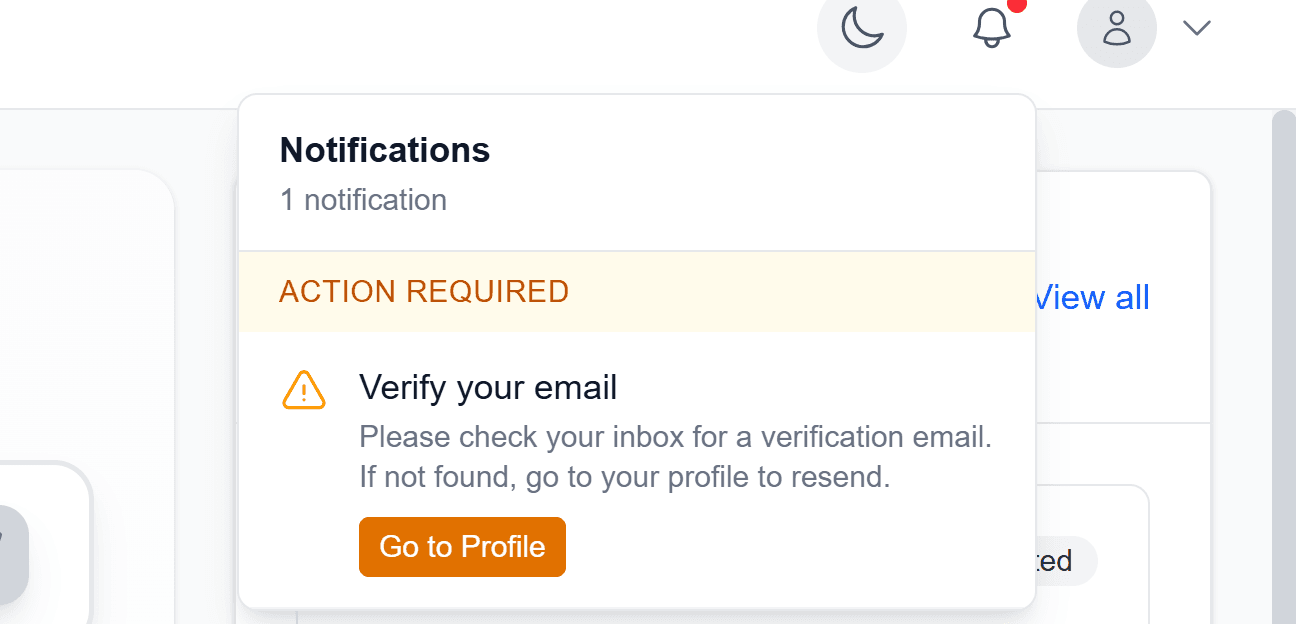
Email verification notification
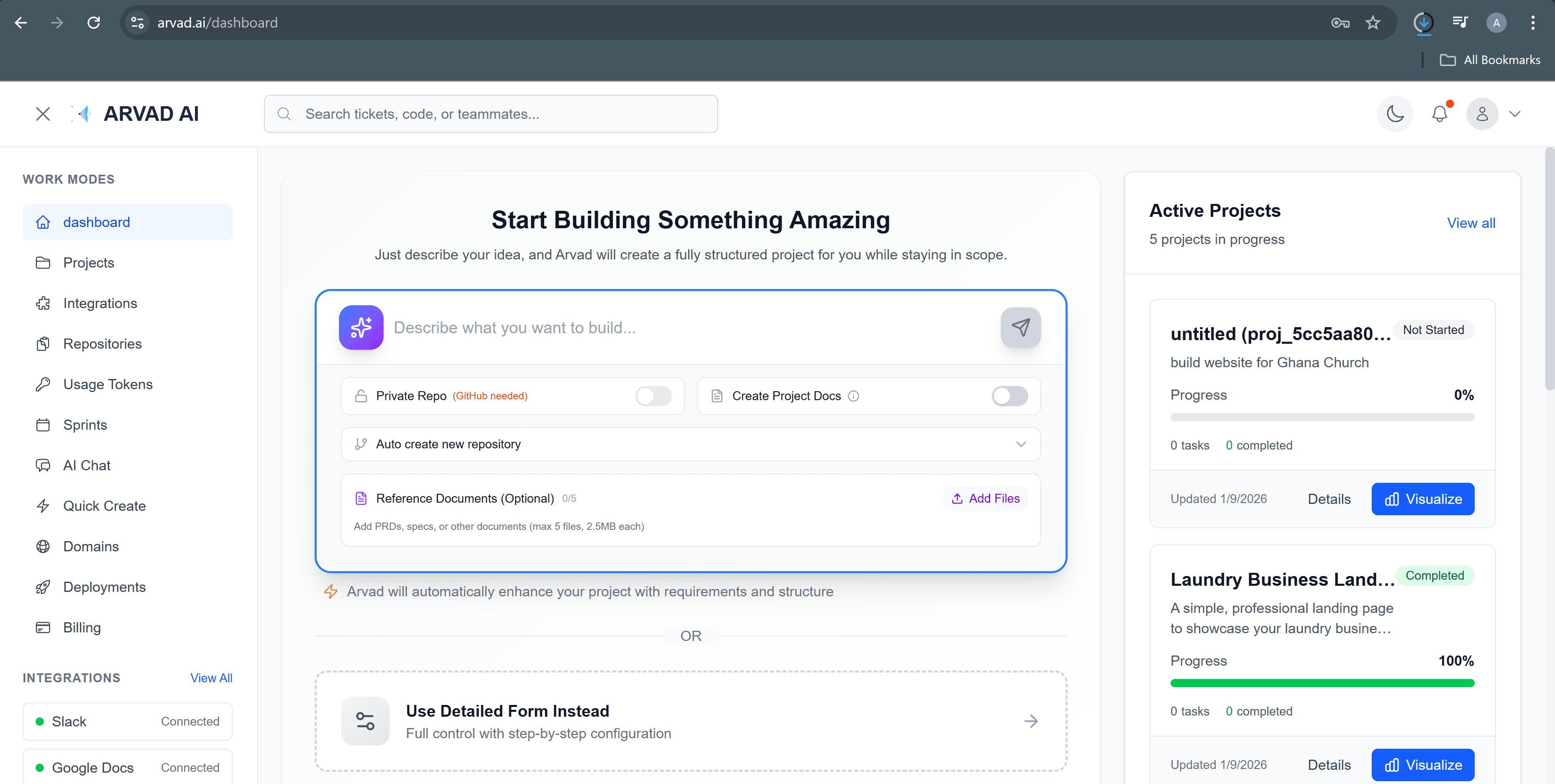
Top Menu Features
The top right corner of the dashboard provides quick access to important features and account settings.

Theme toggle, notifications bell, and profile menu in the header
Theme Toggle
Switch between light and dark modes for comfortable viewing in any environment.
Notifications
View pending organization invitations, email verification status, and system alerts.
Profile Menu
Access your profile settings and sign out of your account.
Creating Your First Project
Prerequisites
- An Arvad account (free tier available)
- A GitHub repository with your project code
- GitHub account connected to Arvad
Steps
- Navigate to the Projects page from the sidebar
- Click the "New Project" button
- Select your repository from the list
- Configure your project settings:
- Framework detection (automatic)
- Build command
- Output directory
- Click "Create Project"
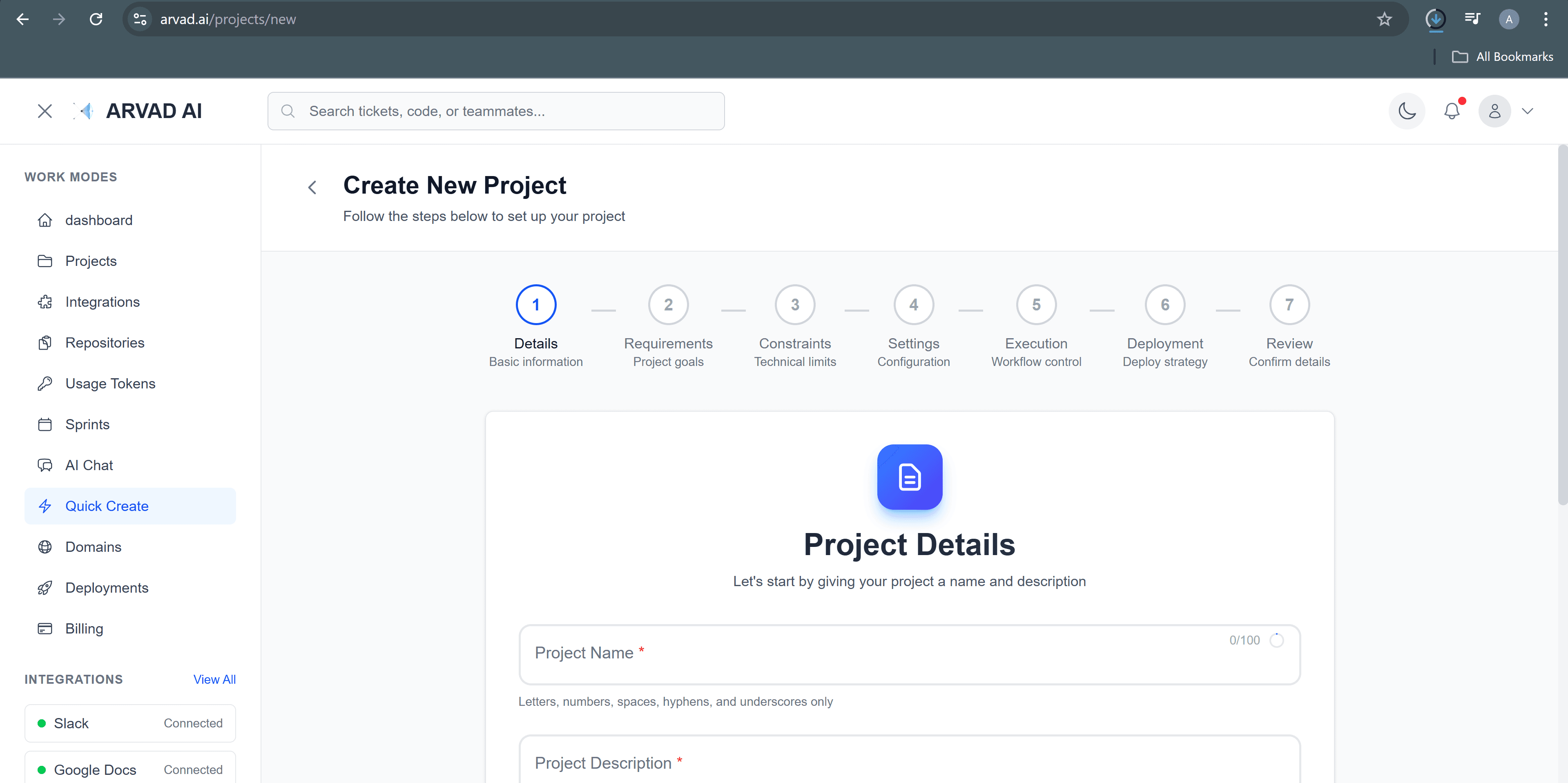
Inviting Team Members
Collaborate with your team by inviting them to your Arvad organization. Team members can have different roles with varying permission levels.
Owner
Full access to all features, billing, and member management
Admin
Can manage projects, deployments, and invite members
Member
Can view and deploy to assigned projects
Managing Your Projects
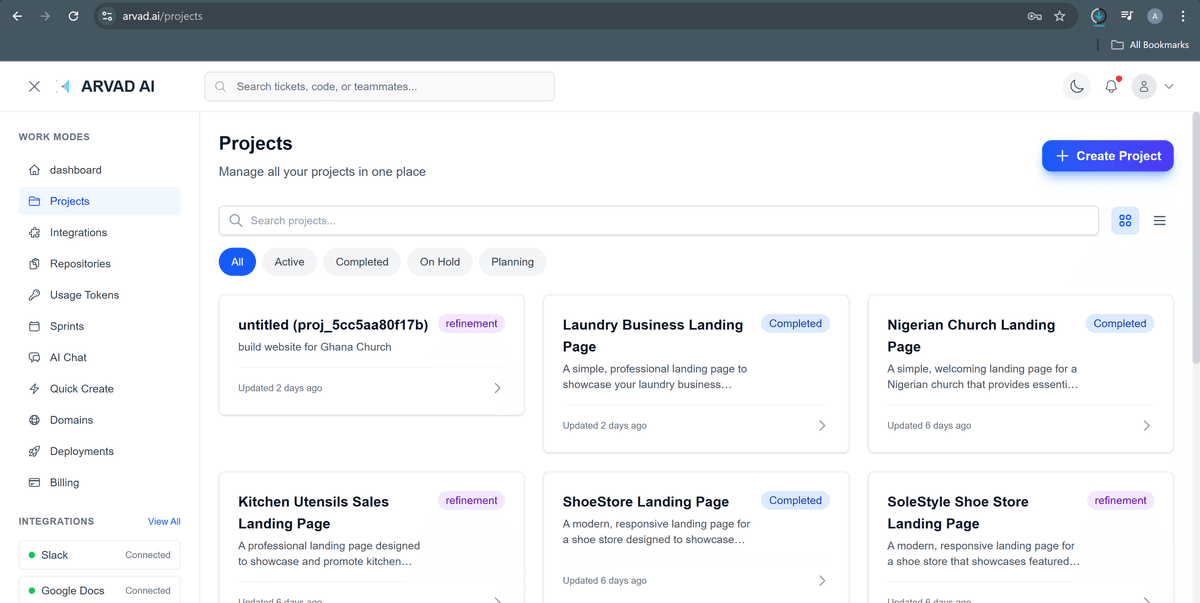
Project Listing
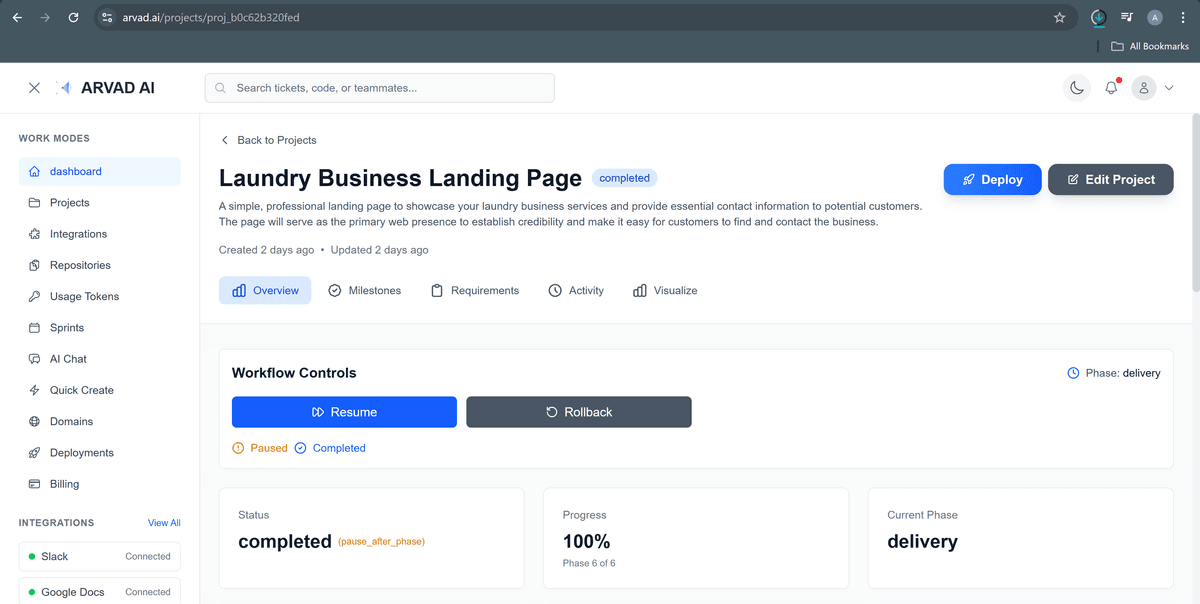
Project Details
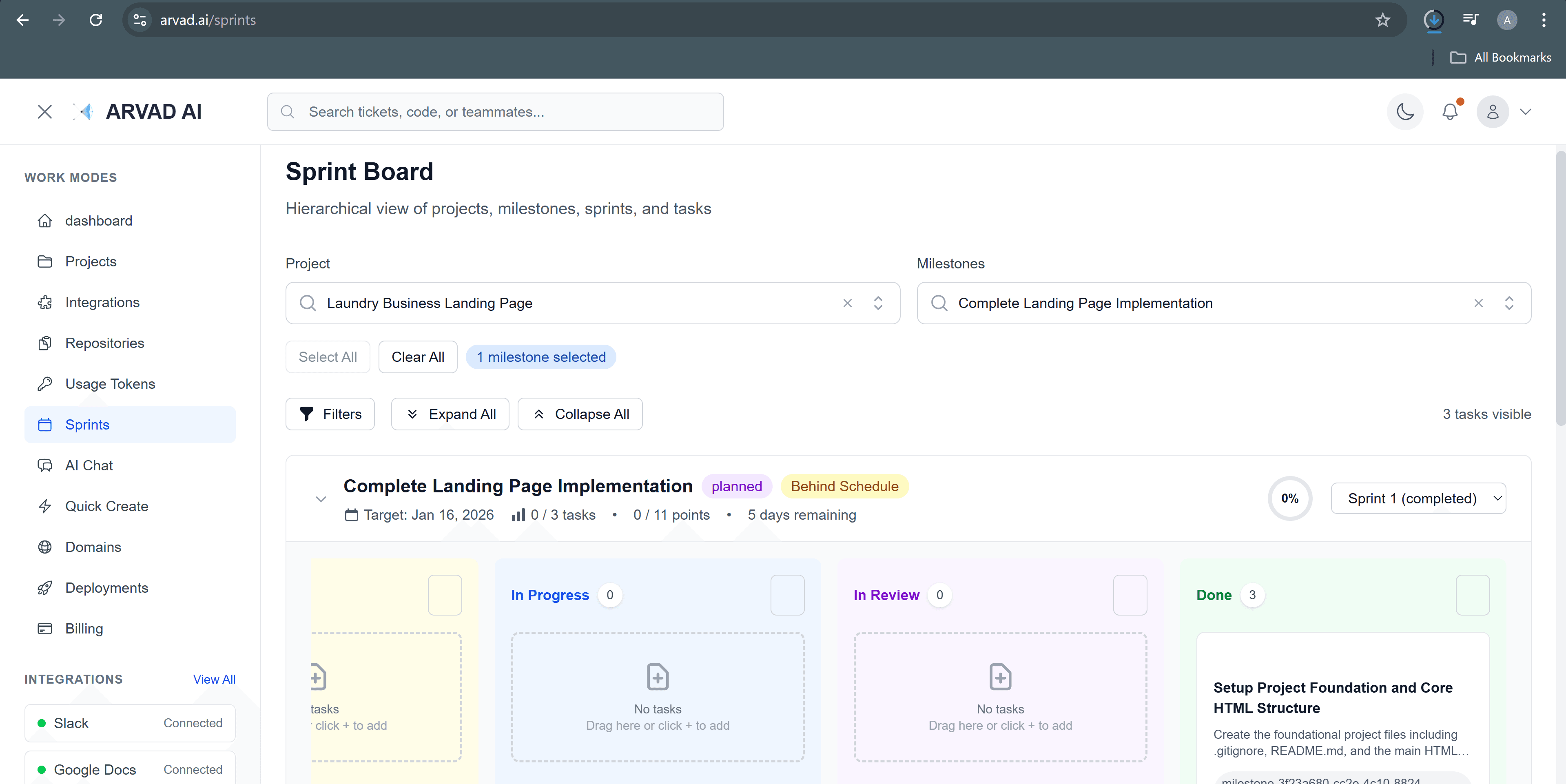
Sprint View for Agile Project Management
Getting Help
Need assistance? The help button is always available in the bottom-right corner of your screen. Access documentation, contact support, or browse FAQs with a single click.
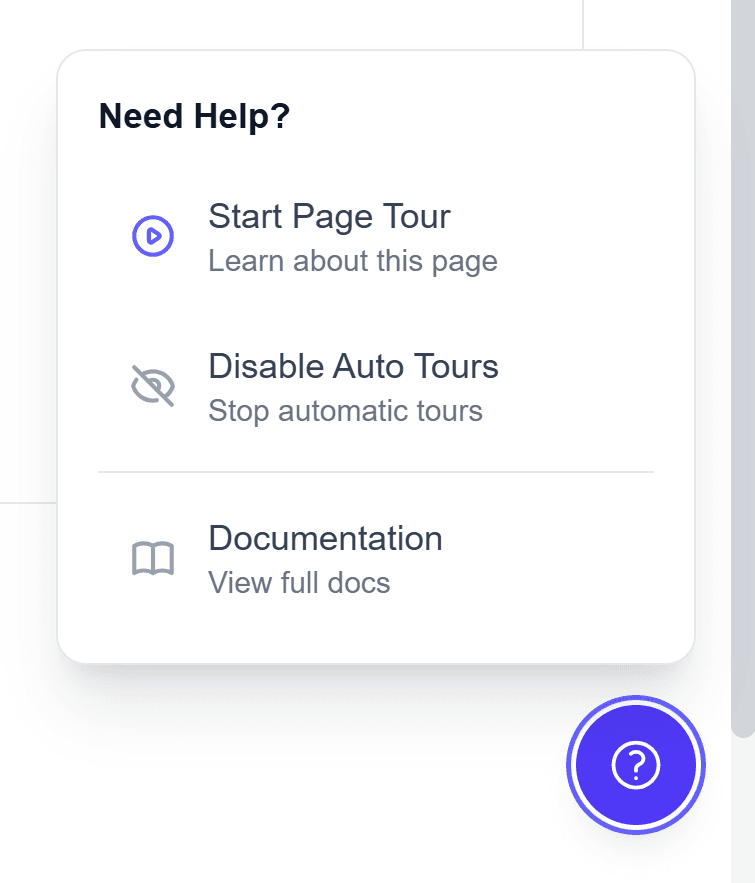
Click the help button for quick access to support resources
💡 Help Options
- 📚Documentation - Browse comprehensive guides and tutorials
- 💬Live Chat - Get real-time support from our team
- ❓FAQs - Find answers to common questions
- 📧Email Support - Reach out for detailed assistance